Chromebook
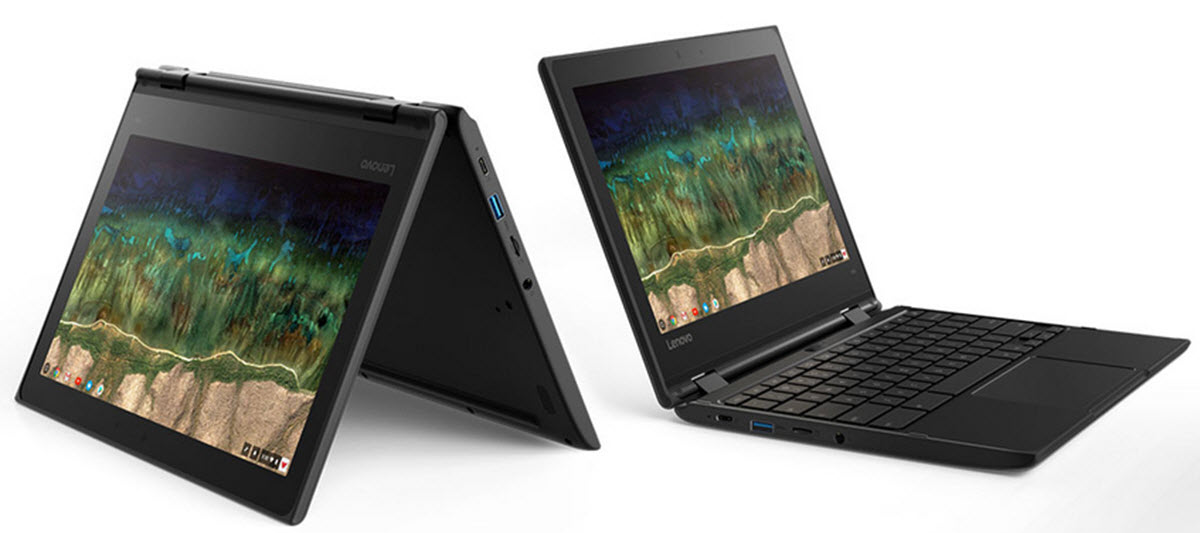
Chromebook was launched by Google in June 2011. Today, both a Chromebook laptop and a Chromebook tablet are available.
The Chromebook concept has changed considerably since the earliest models. The first devices were designed primarily around the Chrome browser and cloud-based applications, while modern Chromebooks can support Android applications, local storage, Linux development tools and more demanding web applications. Higher-performance models are also available, so Chromebook no longer refers exclusively to inexpensive computers intended for basic browsing and school work.
Chromebooks have become very popular school computers. In the United States, data from March 2018 showed that approximately 60% of the computers purchased by schools were Chromebooks. Chromebook is marketed as a low-cost computer, both when it comes to the purchase price and the cost of running it. No costly licenses for programs such as Windows, Windows Word or third-party Anti-virus applications are needed.
Cost remains one reason schools and families consider Chromebooks, but administration is another important factor. Schools can centrally configure large numbers of ChromeOS devices, apply security policies, control which applications students may install and manage user accounts. This can make a fleet of hundreds or thousands of school computers easier to maintain than treating every device as an independent computer.
After launching Chromebook in 2011, Google placed nearly 27,000 Chromebooks in U.S. schools in 2012. This included computers that went to one-on-one programs, where each student is given their own Chromebook. By 2016, Chromebooks represented 58% of the 2.6 million mobile devices purchased by U.S. schools. Internationally, the number was even higher, with Chromebook accounting for approximately 64%.
These figures describe the rapid expansion of Chromebooks during the earlier years of the platform rather than its current market share. The education computer market has continued to change as Windows laptops, tablets and other devices have improved. The historical numbers remain useful because they explain how ChromeOS became so strongly associated with classrooms and why many children first encounter a Chromebook through school rather than through a family purchase.
Chromebooks run on the operating system Chrome OS, which is Linux-based. They rely heavily on the Google Chrome browser to carry out tasks and are intended to be used while connected to the internet and logged into a Gmail account, although they do work (with reduced capacity) in offline mode as well.
Modern ChromeOS is considerably less dependent on a permanent internet connection than the earliest Chromebook versions. Many applications can store files locally, selected cloud files can be made available offline and supported Android applications can continue to work without internet access where the application itself permits it. Internet access is still important because much of the Chromebook experience is designed around synchronisation, cloud storage and web services.
Instead of installing programs such as word processors on the computer, the user adds web apps from the Chrome Web Store. In lieu of having ample storage space on a hard drive or similar, the Chromebook stores most data in the cloud, and most apps are kept in the cloud as well.
This description applies most closely to early Chromebooks. Modern devices can use web applications, progressive web apps and, on compatible models, applications from Google Play. Files can be stored in the cloud or directly on the Chromebook. Some models now include considerably more local storage than early Chromebooks, particularly higher-performance machines. Cloud storage remains central to ChromeOS, but it is no longer correct to think of a Chromebook as a computer with virtually no local software or storage.
The chromebook is not only good for school work. It can also handle most things that you do on a computer. It allows you to write and read emails, pay the bills, track your stock portfolio and a lot more. A cromebook is a good alternative for the entire family. Not just for your child.
Whether a Chromebook can replace a Windows PC or Mac depends on what the user actually does. Browsing, email, streaming, video calls, office documents, online banking and ordinary school work are straightforward. The limitations become more obvious where a person depends on specialist Windows or macOS software, particular professional applications or demanding local games. Before replacing another computer, it is worth checking the software you use regularly rather than assuming an equivalent ChromeOS version exists.
Who is a Chromebook suitable for?
Chromebooks are particularly well suited to people whose computing activity already takes place mainly through a web browser. A student working in Google Docs, watching educational videos and participating in online classes may have little reason to pay for a more powerful conventional laptop. The same applies to family members whose computer use consists largely of email, social media, shopping, banking, streaming and basic office work.
A Chromebook can also work well as a secondary computer. Someone with a powerful desktop for gaming or professional software may prefer an inexpensive Chromebook for travelling, writing and browsing. Because accounts and files can synchronise through the cloud, moving between devices can be relatively straightforward. Losing or damaging the secondary computer also does not necessarily mean losing locally stored work if important files have already been synchronised.
Who might be better served by another computer?
A Chromebook is less suitable when a person depends on desktop software that is available only for Windows or macOS. Specialist engineering packages, professional audio applications, advanced scientific tools and certain corporate systems can create compatibility problems. Browser-based alternatives may exist, but switching software can be inconvenient or impossible where a school or employer requires a particular application.
Heavy gaming is another area where a conventional gaming PC generally provides more flexibility. Chromebooks can run many Android games and can use cloud gaming services, but they are not ordinary Windows gaming laptops. The situation is improving, especially on more powerful models, yet a person buying primarily to play demanding PC games should check support for the individual games before purchasing.
Chromebook in offline mode
Chromebook users can access Google applications such as Google Drive, Gmail, Google Calendar, and Google Keep even in offline mode. Of course, it is not possible to do online updates, e.g. receive new emails, while in offline mode.
Offline use normally needs to be prepared before the internet connection disappears. A document stored exclusively in the cloud may not automatically be available without a connection. Important files can be marked for offline use, allowing a student or traveller to continue working where Wi-Fi is unavailable. Changes can then synchronise when the Chromebook reconnects to the internet.
Chromebooks also come with certain programs that are functional even in offline mode, such as:
- A document-viewer for PDF:s and Microsoft Office documents
- A photo editor
- The built-in local music-player
Google Play video content is available in offline mode using an extension to the Chrome browser.
The exact offline features available now depend on the application being used. Some Android applications support downloaded media or locally saved content, while others require continuous access to an online service. This means somebody who frequently works on aircraft, trains or in areas with poor internet access should test their important applications offline before depending on the Chromebook away from home.
Local storage and cloud storage
Chromebooks are closely associated with Google Drive, but users do not have to keep every file online. The Files application provides access to locally stored downloads and compatible external storage devices. Many modern Chromebooks also have considerably more internal storage than early models, making it practical to keep photographs, videos, Android applications and other files directly on the device.
Cloud storage still offers an important advantage in schools and households where several devices are used. A student can sign in to another Chromebook and regain access to files stored in the account without manually copying them from the original computer. The disadvantage is dependence on account security and internet access, so valuable files should still be handled with sensible backup and account-recovery procedures.
Booting
Except for the first three Chromebooks, all Chromebooks boot with help of Coreboot.
Coreboot, formerly known as LinuxBIOS, is a lightweight fast-booting BIOS.
Fast startup has remained one of the characteristics commonly associated with ChromeOS devices. The operating system is designed around a comparatively controlled hardware and software environment, allowing Google and the device manufacturer to manage much of the startup process. Actual boot time varies between models, particularly as modern Chromebooks range from very inexpensive education machines to substantially faster premium devices.
The operating system
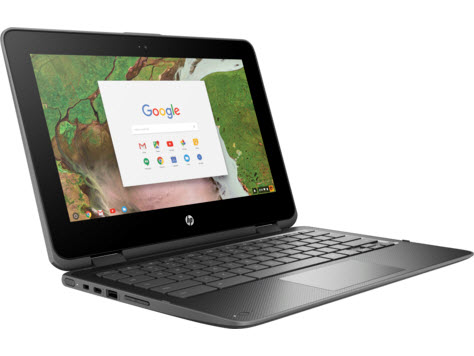
Chromebooks come with Google Chrome OS, an operating system using the Linux kernel.
ChromeOS is designed differently from a conventional desktop installation of Linux. The user is not normally expected to administer the underlying Linux system directly. Google provides the interface, system updates and security mechanisms as one integrated operating system. This makes ChromeOS easier for many inexperienced users but also gives the owner less freedom over the underlying operating system than a conventional Linux distribution.
Automatic ChromeOS updates
ChromeOS automatically installs software and security updates during the supported lifetime of the device. Current Chromebook platforms generally receive up to ten years of automatic updates, although the precise final update date depends on the model and when its hardware platform was originally released. This is an important specification to check when purchasing a used or heavily discounted Chromebook because two visually similar models can have very different amounts of remaining support.
The final update date can be checked from within ChromeOS. Once a model reaches the end of its supported update schedule, the computer does not immediately stop working, but it no longer receives the same operating system and browser security updates. For a device used for banking, school accounts or other sensitive activity, remaining software support should therefore form part of the purchase decision.
Security
ChromeOS uses several security mechanisms rather than relying on one antivirus application. Applications and browser processes can be isolated from other parts of the system, the operating system checks its integrity during startup and software updates are delivered automatically. This architecture reduces some of the maintenance that users of conventional desktop computers have historically needed to perform manually.
No operating system makes a user immune to fraud. A Chromebook owner can still enter a password into a fake website, install a malicious browser extension or give an attacker access to an online account. Account security therefore remains important even where malware risk is lower. Strong passwords, two-step verification and caution around unexpected links remain useful regardless of which computer is being used.
Media player
A media player is included in all Chromebooks.
Users can play locally stored media as well as stream content through browser and Android services. File-format support can vary, and cloud-based streaming is more central to the Chromebook experience than it was to traditional computers built around locally stored music and video libraries. External drives can also be used where a user wants to keep a larger collection without consuming internal storage.
Web browser
Chromebooks come with the Google Chrome web browser already installed.
The close relationship between Chrome and ChromeOS remains one of the platform’s defining characteristics. Browser-based applications can behave much like installed programs, and modern web applications cover activities ranging from document editing and banking to video conferencing and image editing. Users can also install web applications so they appear in the launcher and open in their own windows rather than looking like ordinary browser tabs.
USB support
Utilizing a feature similar to plug-and-play, Chromebooks have support for many USB devices. This makes it possible to plug in devices such as computer mouse, webcam, flash drive, external keyboard, etc into the USB port of the Chromebook and run them right away.
Port selection varies considerably between models. Some compact Chromebooks rely mainly on USB-C, while others retain USB-A ports, microSD card slots and dedicated display connections. A user who regularly connects older accessories should check the physical ports before purchasing rather than assuming every Chromebook has the same connectors. USB-C hubs can add ports, but that introduces another accessory to carry and buy.
External monitors
Many Chromebooks can connect to external displays through USB-C, HDMI or a suitable adapter. This can make a relatively small Chromebook more practical as a home or office computer because the user can connect a larger screen, external keyboard and mouse when sitting at a desk. The maximum number of displays and resolutions supported depend on the individual Chromebook’s processor and video hardware.
Keyboard
Chromebooks have a specialized keyboard.
One of the special features are the buttons used for opening and controlling multiple browser windows.
Caps lock is activated by pressing Alt + search. The place where the Caps lock key is on a standard QWERTY keyboard is occupied by a Web search key on the Chromebook.
Modern Chromebook keyboards can differ slightly depending on the manufacturer and model. ChromeOS uses dedicated keys for functions such as browser navigation, refreshing a page, changing brightness and controlling volume. The Search or Launcher key also provides fast access to applications, files and web searches. Users moving from Windows normally adjust quickly, although keyboard shortcuts differ enough that the first few days can involve a little experimentation.
Touchscreens and convertible Chromebooks
Many Chromebooks now include touchscreens, and convertible models can fold their keyboards behind the display so that the device functions more like a tablet. Touch becomes particularly useful with Android applications originally designed for phones and tablets. Some devices also support active styluses for drawing, handwriting and note taking.
A convertible Chromebook does involve compromises. A 14-inch laptop can make a fairly bulky tablet, while a small detachable model may have a keyboard that is less comfortable for long writing sessions. Buyers should therefore decide whether tablet mode will genuinely be used rather than paying extra simply because the hinge can rotate through 360 degrees.
Chromebook and Android apps
Many modern Chromebooks can run Android apps through Google Play, but support is not universal across every Chromebook model. Compatibility depends on the device and its software support, and individual Android apps can also be unavailable on a Chromebook even where Google Play itself is supported.
Android support considerably expanded what could be done on ChromeOS because applications originally created for phones and tablets became available alongside browser software. This includes games, media applications, note-taking tools and productivity software. The experience is not identical to using an Android tablet, however. Some apps adapt well to keyboard and mouse control while others still feel designed primarily for a touchscreen.
School and workplace administrators can also disable access to Google Play. A Chromebook technically capable of running Android apps may therefore not permit the student or employee to install them. People purchasing a used school-managed device should make certain that it has been properly removed from the organisation’s management before relying on it as a personal computer.
Linux applications on Chromebook
Many Chromebooks also provide a Linux development environment. This allows compatible devices to run command-line tools, code editors, development packages and other Linux software inside a managed environment. The feature is particularly useful for programmers and technically inclined students who want more than browser-based development tools.
Linux is normally disabled by default and can be enabled through ChromeOS settings on compatible devices. School or workplace administrators may prevent users from enabling it. Linux support should also not be interpreted as meaning every desktop Linux application works perfectly on every Chromebook. Hardware requirements, storage and processor architecture can still affect compatibility.
Chromebook for programming
A Chromebook can be a useful programming computer, especially for web development and students learning common programming languages. Browser-based development environments can be used without installing anything locally, while the Linux environment allows installation of compilers, editors and command-line tools on supported devices. More powerful Chromebooks can therefore serve as genuine development machines rather than simply terminals for browsing documentation.
Developers should still check hardware requirements before buying the cheapest education model. Running several browser tabs, an integrated development environment, local development servers and Android applications simultaneously benefits from more memory and a faster processor. A basic Chromebook designed for classroom documents may technically support development while becoming frustrating under a heavier workload.
Antivirus
According to Google, no third-party anti-virus software is needed for Chromebooks due to the built-in multi-layer security architecture.
This does not mean a Chromebook cannot encounter malicious content. Browser extensions can request broad permissions, fraudulent sites can steal login information and Android applications need to be treated with the same common sense applied on other devices. The built-in security architecture reduces some conventional malware risks, but the person using the computer remains capable of handing sensitive information to the wrong website.
Verified Boot
ChromeOS uses a startup integrity system commonly known as Verified Boot. The system checks important parts of the operating system when the computer starts and is designed to detect unauthorised modifications. Combined with automatic updates and sandboxing, this reduces the need for a typical home user to manage much of the routine security maintenance associated with traditional PCs.
Google Classroom
Google Classroom is an app designed for teachers. It serves as a hub for classroom activities, including classroom discussions, homework, communication with students and their parents, and attendance record keeping.
Google Classroom was launched in 2014.
Classroom and Chromebook are separate products, so Google Classroom can also be used from other computers and mobile devices. Their close association comes from the education environment surrounding ChromeOS and Google Workspace. Teachers can distribute assignments digitally, students can complete work through browser-based tools and files can remain connected to the student’s school account rather than one physical computer.
Why schools use Chromebooks
The low purchase price of many models is only one reason schools adopted Chromebooks. Centralised management allows an administrator to apply policies across an entire fleet without manually configuring every computer. Schools can manage accounts, Wi-Fi networks, permitted applications, browser settings and security policies through administrative tools.
A shared-device model is also practical because the student’s work can follow their account rather than remaining on one computer. Where a school permits it, another managed Chromebook can be issued and the student can regain access after signing in. This reduces dependence on one physical machine, although schools still need good procedures for damaged hardware, account recovery and the privacy of student information.
Monitoring
The online and offline activities carried out on school-issued Chromebooks can be monitored by school officials using the pre-installed third-party software.
The level of monitoring varies between schools and districts. Managed devices can also be subject to policies that control websites, extensions, downloads and accounts. Students and parents should therefore not assume a school-owned Chromebook provides the same privacy as a privately owned family computer. The device is part of the school’s managed technology environment and can be configured according to its acceptable-use and safeguarding policies.
Parental controls
Chromebooks can also be used with family controls for younger users. Parents can manage parts of a child’s Google account, establish screen-time limits and control access to certain applications and online content. The exact controls available depend on the child’s account, age and how the Chromebook has been configured.
Technical restrictions should not replace ordinary supervision. A content filter can block many unsuitable websites without understanding every new site or conversation a child encounters. Parents should still explain account security, online scams, advertising and appropriate behaviour rather than assuming the Chromebook can automatically make the internet child-safe.
Accessibility
ChromeOS includes accessibility tools intended to make Chromebooks easier to use for people with different visual, hearing, motor and learning requirements. Depending on the device and software version, these can include screen reading, magnification, spoken feedback, high-contrast settings, dictation and keyboard accessibility features.
These functions can be especially useful in schools because one fleet of Chromebooks may need to serve students with very different requirements. Schools considering ChromeOS for accessibility should still test the individual student’s specialist software and peripherals, since built-in tools do not necessarily replace every dedicated accessibility application or hardware device.
Video calls and remote learning
Modern Chromebooks are commonly equipped with webcams and microphones, making them practical for video meetings and remote classes. Browser-based meeting services work particularly well with ChromeOS because installation is often unnecessary. Android versions of communication applications can provide another route where the device supports them.
Camera quality differs considerably between models. An inexpensive education Chromebook may have a basic webcam suitable for classroom meetings, while newer premium machines can include higher-resolution cameras and improved microphones. Someone expecting to spend several hours each day in video conferences should consider camera, microphone and display quality rather than evaluating the computer solely by processor speed.
Office applications
Google Docs, Sheets and Slides are natural productivity tools on a Chromebook, but users are not restricted to Google’s applications. Microsoft Office services can be accessed through the web, and other productivity applications are available through browsers and, where compatible, Android apps. Documents can also be opened from common Microsoft Office formats.
Compatibility is normally adequate for school and ordinary office work, but complex documents can be more difficult. Spreadsheets containing unusual macros, specialised add-ins or company-specific functionality may depend on desktop versions of Microsoft Office. A business user should test important files before replacing an existing Windows computer, particularly where workbooks have been developed over many years.
Photo and video editing
Chromebooks can perform considerably more photo and video work than early models. Browser applications, Android tools and more powerful Chromebook hardware have expanded the range of editing software available. Basic cropping and photo adjustment can be handled comfortably by many inexpensive devices, while heavier video projects benefit from models with more memory, faster processors and greater storage.
Professional users should still compare software requirements carefully. A browser-based editor may provide most of the functions required for social-media content while falling short of a specialised desktop production workflow. The Chromebook is strongest where the software has already moved toward web, cloud or Android distribution rather than where users depend on one traditional desktop application.
Gaming on a Chromebook
Gaming on Chromebooks now takes several forms. Supported Android games can run locally, simple browser games require little additional setup and cloud gaming services can stream more demanding games from remote hardware. Cloud gaming places less pressure on the Chromebook’s processor and graphics hardware but depends heavily on the quality and latency of the internet connection.
A Chromebook is still not an automatic replacement for a Windows gaming PC. Game availability differs by service, Android compatibility varies and some games that require Windows-specific software or anti-cheat systems may not be practical. People purchasing mainly for gaming should check the titles they play rather than assuming a faster Chromebook guarantees compatibility.
Battery life
Long battery life has traditionally been one attraction of Chromebook laptops, particularly in schools where students may need the device to last through a full day of classes. Actual battery life varies according to display brightness, processor, battery size, application use and age. Video calls and gaming normally consume considerably more power than typing documents.
Battery condition also deserves attention when buying a second-hand Chromebook. A device can remain perfectly functional while an older battery holds substantially less charge than it did when new. ChromeOS provides battery information that can help users assess whether reduced runtime is being caused by normal use or an ageing battery that may eventually need servicing.
Manufacturers
The first Chromebooks for sale were made by Acer and Samsung. In early 2013, Lenovo, Hewlett Packard and Google itself entered the market.
The Chromebook market later expanded to include models from several major computer manufacturers, with devices covering inexpensive education laptops, convertible touch models and higher-performance machines. This broader range means the word Chromebook now describes an operating-system category rather than one narrow class of low-cost hardware.
What is Chromebook Plus?
Chromebook Plus is a newer category of higher-specification Chromebook intended to provide more performance and a consistent minimum level of hardware. These machines sit above many basic education and entry-level Chromebooks and are designed for users who need more memory, storage and processing ability for demanding browser applications, creative work and multitasking.
Current Chromebook Plus systems are also closely connected with Google’s AI features and more demanding applications. This category is relevant to anyone whose impression of Chromebook is still based on the low-powered machines common in schools during the 2010s. A modern Plus model can be considerably closer to a mainstream laptop in performance and price.
What is Chromebook Pixel?
Chromebook Pixel is a high-spec Chromebook that costs more to buy than standard Chromebooks. It was launched in February 2013.
Chromebook Pixel is now best understood as part of Chromebook history rather than a current product family. It demonstrated that ChromeOS hardware did not need to be restricted to the low-cost education market. Google’s later premium ChromeOS hardware continued that idea, while the broader Chromebook Plus category now gives several manufacturers a way to sell higher-spec devices.
What is Chromebox?
Chromebox is a desktop version of Chromebook. It was introduced in May 2012.
A Chromebox normally provides the ChromeOS experience without an integrated display, keyboard or battery. It can be useful in offices, classrooms and homes where a permanent desktop setup is preferred. Because the computer itself can be compact, it can also be mounted behind a display in suitable installations.
What is Chromebase?
Chromebase is a desktop version of Chromebook. The first Chromebase was unveiled by LG in 2014. This computer is an all-in-one computer; the system’s internal components are integrated into the display screen, so there is no computer tower.
The all-in-one design can reduce cable clutter and makes Chromebase-style devices suitable for reception areas, shared workstations and fixed classroom positions. The disadvantage is the same one that applies to most all-in-one computers: replacing the display and replacing the computer are no longer completely separate decisions.
What is Acer Chromebook 15?
Acer Chromebook 15 was the first Chromebook with an FHD 15.6-inch display. It was announced by Acer in early 2015.
Its importance is mainly historical because large-screen Chromebooks are now widely available from several manufacturers. Early Chromebook hardware often focused on compact 11-inch and 13-inch designs suited to classrooms and portability. Larger models helped demonstrate that ChromeOS could also be used for a more conventional home-laptop experience with a bigger display and keyboard.
What is Chromebook Tab 10?
Chromebook Tab 10 is the first Chromebook tablet. It was announced by Google in 2018. The display screen is 9.7 inches (resolution: 2048 x 1536) which is the same as for contemporary iPad tablets. A stylus is included, but no keyboard.
The Chromebook Tab 10 was another stage in the expansion of ChromeOS beyond conventional clamshell laptops. Tablet-only ChromeOS devices have remained less common than Chromebook laptops and convertibles, but the operating system has continued to support touch-focused hardware. Detachable keyboard designs now provide another compromise between a tablet and a conventional notebook.
How much RAM does a Chromebook need?
The appropriate amount of memory depends on what the computer will be used for. Basic school work, email and browsing can run on relatively modest hardware, but memory becomes more important when many browser tabs, Android apps or Linux programs are open simultaneously. A computer bought for several years of regular family use can benefit from more memory even if today’s basic workload does not require it.
A buyer should therefore avoid evaluating a Chromebook only by price. An inexpensive model can be excellent for a child completing school assignments while being frustrating for somebody who keeps dozens of tabs open during work. Higher-spec Chromebook and Chromebook Plus machines are designed for these heavier workloads and can justify their price where the additional performance is actually used.
How much storage does a Chromebook need?
Cloud storage reduces the need for a very large internal drive, but local storage still matters for downloaded files, Android apps, Linux environments, photos and offline media. A basic school Chromebook can manage with relatively little storage where most documents remain online. A family computer or development machine benefits from considerably more capacity.
External USB drives and memory cards can provide additional space on models that support them, but they are less convenient than sufficient internal storage. Buyers should also remember that the advertised drive capacity is not entirely available for personal files because ChromeOS and system data occupy part of it.
Buying a used Chromebook
A used Chromebook can be inexpensive, but the remaining automatic update period should be checked before purchase. Older hardware may look almost identical to a newer model while being much closer to its final software update. This matters more on ChromeOS than a casual buyer might expect because browser security is closely connected to operating-system support.
The buyer should also check the battery, screen, keyboard, charging port and whether the computer remains enrolled in school or company management. A managed Chromebook cannot necessarily be converted into an ordinary personal device by simply performing a factory reset. A legitimate seller of an organisation-owned machine should make certain it has been properly released from management.
Chromebook versus Windows laptop
The main advantage of Windows is software compatibility. A Windows laptop can run an enormous catalogue of traditional desktop applications and games, making it a safer choice where the user’s requirements are uncertain. ChromeOS gains simplicity by providing a more controlled environment, automatic updating and strong integration with Google’s web services.
Price alone no longer separates the two categories clearly. Cheap Windows laptops and expensive Chromebooks both exist. The better question is which operating system supports the person’s applications. Someone who spends the entire day in a browser may notice very little practical disadvantage on ChromeOS, while a user dependent on one Windows-only program can find the Chromebook unsuitable regardless of its processor or screen quality.
Chromebook versus tablet
A tablet can be more convenient for reading, video and touchscreen applications, while a Chromebook laptop normally provides a better keyboard and browser experience for sustained writing. Convertible Chromebooks try to combine the two, but the result is still heavier than a typical tablet. The right choice depends on whether content creation or content consumption makes up most of the user’s time.
For school work involving essays, research and spreadsheets, a physical keyboard can make a Chromebook more comfortable. Younger children using touch-focused educational apps may prefer a tablet. A detachable or convertible device can cover both activities, although it may cost more than a simple entry-level Chromebook.
Is a Chromebook a good family computer?
A Chromebook can work well as a shared family computer because separate Google accounts allow users to keep their own browser history, files, bookmarks and settings apart. Signing out of one account and into another is usually faster than maintaining several complicated desktop installations. Guest browsing can also be useful where somebody needs temporary browser access without adding a permanent account.
The main limitation is again software. A family that needs only browser services, homework applications, streaming and online banking may find ChromeOS more than adequate. A household expecting one computer to run every specialist application and PC game will normally be better served by a conventional Windows system or by using the Chromebook as a second device.
Final thoughts on Chromebooks
Chromebooks began as relatively simple cloud-focused computers built mainly around the Chrome browser. That description no longer covers the full platform. Modern ChromeOS devices can combine web applications, Android software, local files, Linux development tools, touchscreens and cloud services, while hardware ranges from inexpensive school laptops to more capable Chromebook Plus machines.
The original strengths remain easy administration, automatic updating and close integration with web services. Those qualities explain why Chromebooks became so common in education, but they are also useful to households that want a relatively uncomplicated computer. A Chromebook can handle email, documents, video, online banking, web research, communication and a growing range of applications without requiring the user to manage a traditional desktop operating system.
The main purchase question is not whether Chromebooks are good or bad computers. It is whether ChromeOS supports the applications required by the individual user. Someone whose work already happens mainly in a browser can find very little missing. Someone dependent on specialised Windows or macOS programs can encounter limitations immediately. Checking application compatibility, automatic update life, RAM, storage and ports before buying is therefore more useful than choosing a Chromebook simply because it is inexpensive.